Are you tired of complicated media players that just don’t deliver? Are you looking for a simple way to enjoy your favorite IPTV channels? Installing the right IPTV app can make all the difference.
The XCIPTV player is a popular choice among users due to its ease of use and wide compatibility with various devices. To get started, you’ll first need to download and install the app.
By following a few straightforward steps, you can have the XCIPTV player up and running on your device, ready to stream your favorite content.
Key Takeaways
- Learn how to download the XCIPTV player
- Understand the installation process for different devices
- Get tips on configuring the app for optimal performance
- Discover how to troubleshoot common installation issues
- Find out how to enjoy your favorite IPTV channels with ease
What Is XCIPTV Player and Why Use It?
In the realm of IPTV streaming, XCIPTV Player has emerged as a leading platform, offering compatibility with a range of devices. This section will explore the ins and outs of XCIPTV Player, its key features, and why it’s a preferred choice for many.
Key Features and Benefits
XCIPTV Player is designed to provide a seamless viewing experience. Some of its standout features include:
- Support for multiple IPTV services
- User-friendly interface
- High-quality video streaming
- Compatibility with various devices, including Android and Firestick
These features make XCIPTV Player an attractive option for those looking to enjoy live TV and access a wide range of channels.
Compatibility with Devices
One of the key advantages of XCIPTV Player is its broad compatibility. Whether you’re using an Android device or a Firestick, XCIPTV Player can be easily installed and used. This compatibility ensures that users can enjoy their favorite IPTV services across different platforms.

Understanding IPTV Services
IPTV, or Internet Protocol Television, is a service that provides television programming through the internet. XCIPTV Player is designed to work with various IPTV services, allowing users to access a vast array of channels and content. By understanding how IPTV services work, users can better appreciate the value that XCIPTV Player brings to their viewing experience.
Before You Begin: Requirements for Installation
Before installing XCIPTV Player, it’s essential to ensure your device meets the necessary requirements. This preparation will help guarantee a smooth and successful installation process.
Device Requirements
To install XCIPTV Player, your device should meet certain specifications. Here are the key device requirements:
- Operating System: Android 4.4 or later
- Processor: Dual-core or higher
- RAM: At least 2GB
- Storage: Minimum 500MB of free space
Internet Connection Needs
A stable and fast internet connection is crucial for a seamless viewing experience with XCIPTV Player. We recommend:
- Minimum Speed: 5 Mbps for SD content
- Recommended Speed: 10 Mbps or higher for HD content
Ensure your internet connection meets these requirements to avoid buffering issues.
IPTV Subscription Information
To use XCIPTV Player, you’ll need an active IPTV subscription. Make sure you have the following details ready:
- Username and Password: Provided by your IPTV service provider
- M3U Playlist URL: If your provider uses this format
- Xtream Codes: If your provider utilizes Xtream Codes for authentication

Installing XCIPTV Player on Android Devices
The XCIPTV Player installation on Android devices is a breeze, whether you choose the Google Play Store or manual APK installation. This flexibility allows users to select the method that best suits their preferences and device capabilities.
Installation via Google Play Store
For a seamless and secure installation, using the Google Play Store is recommended. Simply search for “XCIPTV Player” in the Play Store, select the app from the search results, and click “Install.” The app will be downloaded and installed automatically on your Android device.
Manual APK Installation
If you prefer manual installation or if the Google Play Store is not accessible, you can download the XCIPTV Player APK from a trusted source. Navigate to the download location on your device, open the APK file, and follow the prompts to install. Ensure that your device allows installations from unknown sources by adjusting the settings accordingly.
Permissions and Settings
During installation, you may be prompted to grant certain permissions to the XCIPTV Player, such as access to storage or network connectivity. Review these permissions carefully and grant them as necessary for the app to function correctly. Additionally, ensure that your device’s settings are configured to allow the app to run smoothly, such as enabling necessary permissions or adjusting battery saver settings.
Key steps to consider:
- Enable installations from unknown sources if installing via APK.
- Grant necessary permissions during installation.
- Adjust device settings to optimize app performance.
How to Install XCIPTV on Firestick
Installing XCIPTV on your Firestick is a straightforward process that can be completed in a few steps. To get started, you’ll need to decide on the installation method that works best for you.
Using the Amazon App Store
The easiest way to install XCIPTV on your Firestick is by using the Amazon App Store. Simply search for XCIPTV in the store, download the app, and follow the on-screen instructions to complete the installation.
Installing with Downloader App
If XCIPTV is not available on the Amazon App Store, you can use the Downloader app to install it. First, download and install the Downloader app from the Amazon App Store. Then, open Downloader and enter the URL for the XCIPTV APK file. Ensure the URL is from a trusted source to avoid any security risks.
Enabling Unknown Sources
Before you can install XCIPTV using the Downloader app, you’ll need to enable the installation of apps from unknown sources. To do this, go to your Firestick settings, select “My Fire TV” or “Device,” and then look for “Developer options.” Toggle on “Apps from Unknown Sources” and confirm your choice.
Verifying Installation
Once you’ve installed XCIPTV, verify that it’s working correctly by opening the app and checking for any updates. If you encounter issues, ensure that your Firestick is connected to the internet and that you’ve entered the correct IPTV service credentials.
By following these steps, you should be able to successfully install XCIPTV on your Firestick and start enjoying your favorite IPTV channels.
Setting Up XCIPTV on Android TV
With XCIPTV on Android TV, you can unlock a vast library of entertainment options, and setting it up is easier than you think. Android TV offers a unique viewing experience by combining the simplicity of a TV interface with the flexibility of an Android device. To get started with XCIPTV, you’ll need to install the application on your Android TV.
Official Installation Methods
The most straightforward way to install XCIPTV on your Android TV is by using the official installation methods. If XCIPTV is available on the Google Play Store for Android TV, you can directly search for it and install it. This method is secure and ensures you get the latest version of the app.
- Navigate to the Google Play Store on your Android TV.
- Search for “XCIPTV Player.”
- Click “Install” to download and install the app.
Sideloading the Application
If XCIPTV is not available on the Google Play Store for Android TV, or if you prefer a different version, you can sideload the application. Sideloading involves downloading the APK file from a trusted source and installing it manually.
- Enable “Unknown Sources” in your Android TV settings to allow installations from outside the Play Store.
- Download the XCIPTV APK from a reputable site using a file manager or browser on your Android TV.
- Open the APK file and follow the installation prompts.
Troubleshooting Installation Issues
Sometimes, you might encounter issues during the installation process. Common problems include installation failures or the app not being compatible with your Android TV version.
- Check Compatibility: Ensure the XCIPTV version you’re trying to install is compatible with your Android TV’s operating system.
- Clear Cache and Data: If you’re experiencing issues with the Play Store or sideloading, try clearing the cache and data for the Google Play Store or the file manager you’re using.
- Update Your OS: Make sure your Android TV is running the latest software updates.
By following these steps and troubleshooting tips, you should be able to successfully install XCIPTV on your Android TV and enjoy a wide range of channels and content.
Configuring Your XCIPTV Player for First Use
Now that you’ve installed XCIPTV Player, let’s dive into the initial setup to get you streaming your favorite channels. The initial configuration is crucial for a seamless viewing experience.
Initial Setup and Interface Navigation
Upon launching XCIPTV Player for the first time, you’ll be greeted with a user-friendly interface. Navigate through the menu to understand the various options available. The interface is designed to be intuitive, making it easy for users to find their way around.
Take a moment to explore the different sections, such as channel listings, EPG (Electronic Program Guide), and settings. Familiarizing yourself with these sections will enhance your overall experience.
Account Creation (If Required)
If your IPTV service requires an account within XCIPTV Player, you’ll need to create it during the initial setup. Follow the on-screen instructions to enter your credentials. This step is crucial for accessing your IPTV service.
Setting Language and Preferences
To personalize your viewing experience, you can set your preferred language and other preferences. Navigate to the settings menu and select your desired options. You can choose from various languages and adjust settings such as video quality and aspect ratio.
- Select your preferred language for the interface and audio.
- Adjust video settings according to your internet bandwidth.
- Customize other preferences to suit your viewing habits.
By following these steps, you’ll have XCIPTV Player configured to your liking, ensuring a smooth and enjoyable IPTV viewing experience.
Adding Your IPTV Service to XCIPTV Player
The process of integrating your IPTV service with XCIPTV Player involves a few simple steps. To get started, you’ll need to have your IPTV service details ready, including any necessary URLs, usernames, and passwords.
Using M3U Playlist URLs
One common method to add your IPTV service is by using an M3U playlist URL. This URL is provided by your IPTV service provider and contains a list of channels and their streaming links. To add it, navigate to the XCIPTV Player settings, select the option to add a new playlist, and enter the M3U URL. Ensure the URL is accurate to avoid any playback issues.
Xtream Codes Integration
XCIPTV Player also supports Xtream Codes, a popular protocol used by many IPTV services. To integrate your Xtream Codes IPTV service, you’ll need to enter your username and password provided by the service. Navigate to the Xtream Codes section in the player settings, enter your credentials, and the player will fetch your available channels.
Entering Username and Password
For both M3U and Xtream Codes configurations, you’ll be required to enter your IPTV service credentials. Keep these details secure to prevent unauthorized access to your IPTV service. Once entered, the XCIPTV Player will authenticate your credentials and load your channel lineup.
Manual Playlist Configuration
In some cases, you might need to manually configure your playlist. This involves editing the M3U file or entering specific channel details into the player. While more complex, this method allows for customization of your channel list. You can add or remove channels as per your preference, ensuring a tailored viewing experience.
By following these steps, you can successfully add your IPTV service to XCIPTV Player and enjoy a wide range of channels and content. The flexibility in configuration options ensures that you can customize the player to suit your viewing needs.
EPG Setup and Channel Organization
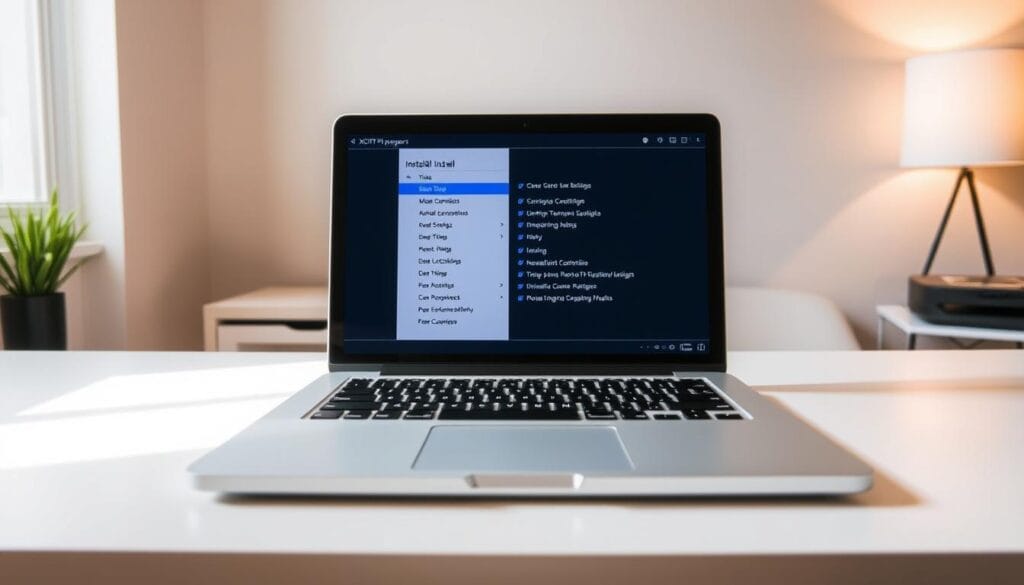
Configuring your XCIPTV player with EPG can significantly enhance your viewing experience. EPG, or Electronic Program Guide, allows you to view current and upcoming TV listings, making it easier to plan your viewing schedule.
Adding EPG Sources
To add an EPG source, navigate to the settings menu within your XCIPTV player. Here, you’ll find the option to input your EPG URL. Ensure the URL is from a reliable source to avoid any discrepancies in your TV listings.
Creating Channel Groups
Organizing your channels into groups can simplify navigation. To create a channel group, select your desired channels and assign them to a new group. This feature is particularly useful for distinguishing between different types of content, such as movies, sports, or news.
Favorites and Custom Lists
For quicker access to your most-watched channels, you can create a list of favorites. Additionally, custom lists allow you to curate channels based on specific criteria, such as genre or language. This personalization enhances your overall viewing experience.
Some key benefits of EPG setup and channel organization include:
- Efficient navigation through your channel lineup
- Personalized viewing experience through custom lists and favorites
- Up-to-date TV listings for better planning
Using VPN with XCIPTV Player for Enhanced Security
To ensure a secure and private viewing experience with XCIPTV Player, employing a VPN is highly recommended. A VPN, or Virtual Private Network, encrypts your internet connection, making it more difficult for third parties to intercept your data.
Why a VPN Is Recommended
A VPN is crucial for IPTV streaming as it masks your IP address, providing a layer of anonymity and security. This is particularly important in regions with strict internet regulations.
Setting Up VPN Connection
To set up a VPN with XCIPTV Player, first choose a reputable VPN service that supports streaming. Then, follow these steps:
- Download and install the VPN app on your device.
- Launch the VPN app and log in with your credentials.
- Select a server location that is suitable for streaming.
- Connect to the VPN and then launch XCIPTV Player.
Best VPN Options for IPTV Streaming
Some of the best VPNs for IPTV streaming include:
| VPN Provider | Server Locations | Speed |
|---|---|---|
| ExpressVPN | 3000+ servers in 94 countries | High |
| NordVPN | 5000+ servers in 59 countries | High |
| Surfshark | 3200+ servers in 65 countries | High |
By using a VPN with XCIPTV Player, you can enjoy a more secure and private streaming experience. Always choose a VPN that is reliable and has a strong track record of protecting user data.
Troubleshooting Common XCIPTV Issues
If you’re experiencing difficulties with XCIPTV, you’re not alone; let’s resolve these issues together. XCIPTV Player, like any streaming service, can sometimes encounter problems that affect your viewing experience.
Connection Problems
Connection issues are common and can be due to various factors, including your internet connection or the server status. Ensure your internet is stable and check the XCIPTV server status.
Playback Issues
Playback issues can stem from a variety of sources, including device compatibility or corrupted data. Try restarting your device or clearing the app’s cache.
Login and Authentication Errors
Login issues often relate to incorrect credentials or subscription status. Double-check your login details and ensure your subscription is active.
Updating the Application
Keeping XCIPTV Player updated is crucial for resolving known issues and improving performance. Check for updates in your device’s app store.
| Issue | Potential Cause | Solution |
|---|---|---|
| Connection Problems | Internet Connection | Check internet stability |
| Playback Issues | Device Compatibility | Restart device or clear app cache |
| Login Errors | Incorrect Credentials | Verify login details and subscription status |
By following these troubleshooting steps, you should be able to resolve common issues with XCIPTV Player and enjoy uninterrupted streaming.
Conclusion
With the steps outlined in this article, you’re now equipped to install and set up XCIPTV player on your preferred device, unlocking a world of IPTV streaming possibilities. By following the installation and configuration process, you can enjoy seamless access to your favorite channels and content.
The XCIPTV player offers a robust and user-friendly interface, making it an ideal choice for IPTV streaming. Its compatibility with various devices, including Android and Firestick, ensures that you can enjoy your IPTV subscription across different platforms.
As you explore the full potential of XCIPTV player, you’ll discover a range of features that enhance your viewing experience. From EPG setup to VPN integration, the player provides a comprehensive solution for IPTV streaming needs. With XCIPTV player, you can enjoy a superior streaming experience, and we encourage you to make the most of its capabilities.
FAQ
What is XCIPTV player, and how does it work?
XCIPTV player is an IPTV application that allows users to stream live TV, movies, and on-demand content. It works by connecting to an IPTV service provider’s servers, using a username, password, and M3U playlist URL to authenticate and stream content.
Is XCIPTV player compatible with my device?
XCIPTV player is compatible with Android devices, Firestick, and Android TV. You can check the Google Play Store or the XCIPTV website for the latest compatibility information.
How do I install XCIPTV player on my Android device?
You can install XCIPTV player on your Android device by downloading the APK file from the XCIPTV website or by searching for it on the Google Play Store.
What are the internet connection requirements for XCIPTV player?
A stable internet connection with a minimum speed of 5 Mbps is recommended for smooth streaming. However, the required speed may vary depending on the quality of the stream and the number of devices connected.
How do I add my IPTV subscription details to XCIPTV player?
You can add your IPTV subscription details to XCIPTV player by entering your username, password, and M3U playlist URL in the app’s settings.
Can I use XCIPTV player with a VPN?
Yes, using a VPN with XCIPTV player is recommended for enhanced security and to protect your IPTV subscription details.
How do I troubleshoot common issues with XCIPTV player?
You can troubleshoot common issues with XCIPTV player by checking your internet connection, updating the app, and verifying your IPTV subscription details.
How do I update XCIPTV player to the latest version?
You can update XCIPTV player to the latest version by checking the Google Play Store for updates or by downloading the latest APK file from the XCIPTV website.
Can I use XCIPTV player to stream content on multiple devices?
Yes, you can use XCIPTV player to stream content on multiple devices, depending on your IPTV subscription plan.
How do I configure EPG and channel organization in XCIPTV player?
You can configure EPG and channel organization in XCIPTV player by adding EPG sources, creating channel groups, and setting up favorites and custom lists.
What should I do if I encounter playback issues or login errors?
If you encounter playback issues or login errors, try checking your internet connection, verifying your IPTV subscription details, or updating the app to the latest version.