
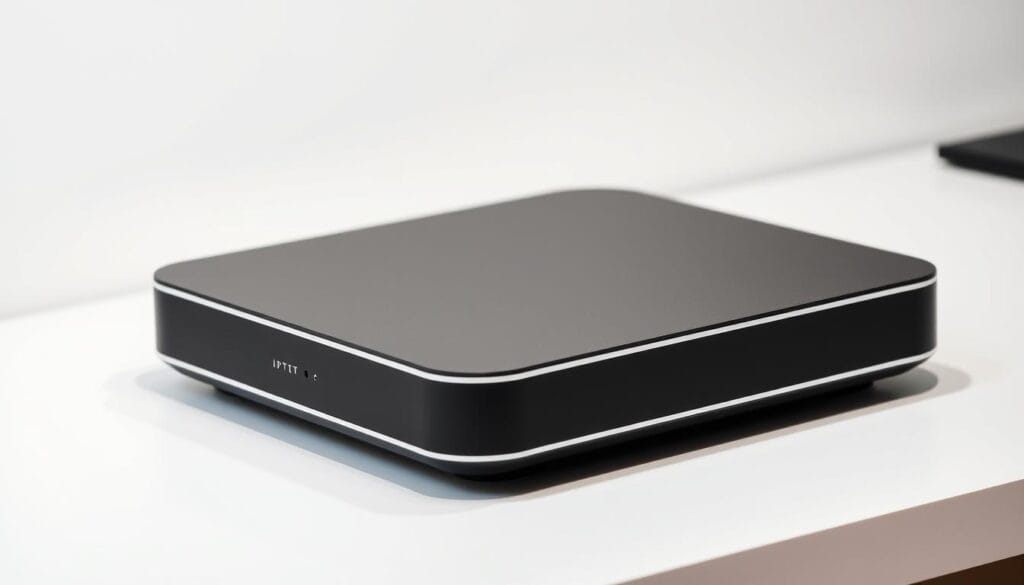
Are you experiencing issues with your streaming service? A reset might be the solution you need. IPTV devices can sometimes be finicky, and a simple factory reset can resolve many common problems.
Performing a reset on your device can help troubleshoot issues and optimize streaming quality. This process can clear out temporary glitches and restore your device to its original settings, ensuring a smoother viewing experience.
Key Takeaways
- Resetting your IPTV device can resolve common issues and improve streaming quality.
- A factory reset restores your device to its original settings.
- Troubleshooting with a reset can help optimize your streaming experience.
- Regular resets can help maintain your device’s performance.
- A reset can clear out temporary glitches and improve overall functionality.
Understanding IPTV Boxes and Their Functionality
IPTV boxes are devices that enable users to stream content from the internet directly to their TVs. These devices have become increasingly popular due to their ability to provide access to a wide range of channels and on-demand content.
What Is an IPTV Box and How Does It Work
An IPTV box works by connecting to the internet and decoding IPTV signals, allowing users to watch TV channels and access various streaming services. It typically requires a subscription to an IPTV service to function.
Common Components and Features of Modern IPTV Boxes
Modern IPTV boxes often come with features such as Wi-Fi connectivity, HDMI output, and support for various video formats. Some common components include a processor, memory, and an operating system, usually Android or Linux-based.

Different Types of IPTV Boxes in the Market
There are various types of IPTV boxes available, including Android-based boxes, MAG IPTV boxes, and devices from brands like Formuler and Infomir. Each type has its unique features and capabilities.
| Type of IPTV Box | Operating System | Key Features |
|---|---|---|
| Android-based | Android | Access to Google Play Store, Wide app compatibility |
| MAG IPTV | Linux-based | High performance, Advanced streaming capabilities |
| Formuler | Linux-based | High-quality video output, Robust user interface |
Signs Your IPTV Box Needs a Reset
A reset can often resolve the common issues that plague IPTV boxes. If you’re experiencing problems with your device, it’s essential to identify the signs that indicate a need for a reset. This section will guide you through the common issues that may require a reset, helping you troubleshoot and potentially reset IPTV box.
Buffering and Streaming Quality Issues
One of the most frustrating issues with IPTV boxes is buffering and poor streaming quality. If your streams are constantly buffering or the video quality is subpar, it might be a sign that your IPTV box needs a reset. Buffering issues can be caused by a variety of factors, including network congestion, software glitches, or hardware problems.
App Crashes and System Freezes
If your IPTV box’s apps are crashing frequently or the system is freezing, it’s a clear indication that something is amiss. App crashes can be due to corrupted data or software issues, while system freezes might indicate a more profound problem with the device’s operating system.

Menu Navigation Problems
Difficulty navigating the menu or accessing certain features can be a sign that your IPTV box needs a reset. If the interface is unresponsive or laggy, it could be due to a software issue that a reset can resolve.
Audio and Video Sync Issues
When the audio and video are out of sync, it can be very distracting. This issue can occur due to processing delays or software glitches. A reset might help resolve these audio and video sync issues by clearing out temporary glitches.
| Issue | Possible Cause | Potential Solution |
|---|---|---|
| Buffering | Network congestion, software glitches | Reset IPTV box, check network |
| App crashes | Corrupted data, software issues | Reset app, reset IPTV box |
| Menu navigation problems | Software issues, interface glitches | Reset IPTV box |
| Audio and video sync issues | Processing delays, software glitches | Reset IPTV box |
Types of Resets for Your IPTV Box
When dealing with IPTV box issues, understanding the different types of resets is crucial. Resets can help troubleshoot and resolve various problems, from minor glitches to more serious system failures.
Soft Reset vs. Hard Reset
A soft reset is a gentle restart of your IPTV box, similar to restarting a computer. It’s used to resolve minor issues like freezing or slow performance. On the other hand, a hard reset involves physically restarting the device, usually by unplugging it, and is used for more severe problems.
Factory Reset: When It’s Necessary
A factory reset erases all data and settings, restoring the IPTV box to its original state. This is typically done when selling the device or resolving persistent issues that other resets can’t fix.
App-Specific Resets
Some IPTV boxes allow app-specific resets, which can resolve issues with individual applications without affecting the entire system.
| Reset Type | Description | Use Case |
|---|---|---|
| Soft Reset | Gentle restart | Minor glitches |
| Hard Reset | Physical restart | Severe system issues |
| Factory Reset | Erase all data and settings | Persistent issues or selling the device |
| App-Specific Reset | Reset individual apps | App-specific issues |

Before You Reset: Important Preparations
Before resetting your IPTV box, it’s crucial to take some preparatory steps to ensure a smooth transition and minimize potential disruptions.
Backing Up Your Settings and Favorites
First, backup your settings and favorites to avoid losing your personalized configurations. This includes saved channels, login credentials, and customized preferences. Check your IPTV box’s settings menu for backup options or consult the user manual for specific instructions.
Recording Your Subscription Details
It’s also essential to record your subscription details, including account usernames, passwords, and any other relevant information. This will help you quickly restore your services after the reset.
Checking for Alternative Solutions
Before proceeding with a reset, consider alternative solutions to your current issues. Check for software updates, restart your device, or consult online forums for troubleshooting tips. Sometimes, a simple reboot or update can resolve the problem without needing a full reset.
How to Perform a Soft Reset on Your IPTV Box
When your IPTV box malfunctions, a soft reset is often the first step to getting it working again. This process can resolve various issues without erasing your settings, making it a safe troubleshooting method.
Using the Remote Control Method
One of the simplest ways to soft reset your IPTV box is by using your remote control. Most IPTV remotes have a button or combination of buttons that allow you to restart the device. Check your user manual for specific instructions, as this can vary between models.
Power Cycling Procedure
Power cycling, or unplugging your IPTV box from the power source, is another effective method. To do this safely, turn off your IPTV box, unplug it, wait for about 30 seconds, and then plug it back in. This process clears the device’s memory and can resolve issues like freezing or buffering.
Restarting Through System Settings
Many IPTV boxes allow you to restart directly through their system settings. Navigate to the settings menu on your IPTV box, look for the “System” or “Device” section, and select the restart option. This method is particularly useful if you’re having trouble with your remote control.
By following these methods, you can perform a soft reset on your IPTV box and potentially resolve common issues. Remember, a soft reset is a non-invasive way to troubleshoot your device, preserving your settings and preferences.
Step-by-Step Guide to Factory Reset Your IPTV Box
Performing a factory reset on your IPTV box can resolve persistent issues and restore its original settings. This process can help troubleshoot and fix problems, ensuring a smooth viewing experience.
Using the Reset Button on Your Device
Many IPTV boxes come with a reset button, usually located at the back or bottom of the device. To perform a factory reset using this method, you need to press and hold the reset button for a few seconds until the device restarts. The exact procedure may vary depending on the model, so it’s a good idea to consult your device’s manual.
Factory Reset Through System Settings
Most modern IPTV boxes allow you to perform a factory reset through their system settings. To do this, navigate to the settings menu, find the “System” or “Advanced Settings” section, and look for the “Factory Reset” or “Reset to Default” option. Follow the on-screen instructions to complete the reset process.
Recovery Mode Reset Methods
For more complex issues, you may need to use the recovery mode to reset your IPTV box. The process differs depending on whether your device is Android-based or uses a proprietary system.
For Android-Based IPTV Boxes
To reset an Android-based IPTV box, you need to boot the device into recovery mode. This is typically done by holding down a combination of buttons (such as the power and volume down buttons) while powering on the device. Once in recovery mode, use the volume buttons to navigate to the “Wipe data/factory reset” option and select it using the power button.
For Proprietary System IPTV Boxes
For IPTV boxes with proprietary systems, the recovery mode process can vary significantly. It’s essential to refer to the user manual or manufacturer’s website for specific instructions on how to access recovery mode and perform a factory reset.
By following these steps, you can successfully perform a factory reset on your IPTV box, regardless of the type or brand. Remember to back up any important settings or data before initiating the reset process.
Troubleshooting Common IPTV Box Issues Without a Reset
Troubleshooting your IPTV box doesn’t always require a reset. Many common issues can be resolved with some simple steps, saving you time and frustration.
Network Connection Problems
One of the most common issues with IPTV boxes is network connection problems. Ensure your IPTV box is properly connected to your router. You can try restarting your router or checking for physical damage to the Ethernet cable. If you’re using Wi-Fi, try moving the IPTV box closer to the router or switching to a wired connection.
- Check your internet speed to ensure it meets the IPTV service’s requirements.
- Use a network diagnostic tool to identify and fix connectivity issues.
Subscription and Authorization Issues
If your IPTV box is not authorizing your subscription, check that your subscription is active and that you’ve entered the correct credentials. Sometimes, re-entering your login details or contacting your IPTV provider to refresh your subscription can resolve the issue.
Key steps:
- Verify your subscription status with your provider.
- Re-enter your login credentials on the IPTV box.
Software Update Errors
Software updates can sometimes fail or get stuck. Try checking for updates again or downloading the update manually from the manufacturer’s website. Ensure your IPTV box has enough storage space for the update.
Storage and Cache Problems
Low storage space can cause your IPTV box to malfunction. Clear the cache regularly and remove any unnecessary apps or data to free up space.
- Clear cache: Go to settings > storage > cached data.
- Manage apps: Uninstall apps you no longer use.
Handling Unresponsive Applications
If a specific app on your IPTV box is unresponsive, try closing and reopening it. If the problem persists, uninstall and reinstall the app.
Tips:
- Force close the app if it’s not responding.
- Check for app updates in the app store.
Optimizing Your IPTV Box for Better Performance
Optimizing your IPTV box can significantly enhance your streaming experience. A well-optimized IPTV box ensures that you have a smooth, uninterrupted viewing experience. To achieve this, several key areas need to be addressed.
Network Settings Optimization
One of the primary factors affecting IPTV performance is your network settings. Ensure your internet connection is stable and fast enough to support IPTV streaming. You can optimize your network by using a wired Ethernet connection instead of Wi-Fi, as it provides a more stable connection.
Video Quality and Buffering Settings
Adjusting video quality and buffering settings can also improve performance. Lowering the video quality can help reduce buffering, especially if your internet connection is not very strong. Most IPTV boxes allow you to adjust these settings within their menus.
Managing Storage and Cache
Managing storage and cache is crucial for maintaining your IPTV box’s performance. Regularly clearing the cache can help prevent slowdowns and ensure that your device runs smoothly.
Updating Firmware and Software
Keeping your IPTV box’s firmware and software up to date is essential. Updates often include performance improvements and bug fixes that can enhance your overall IPTV experience. Check for updates regularly in your device’s settings menu.
By following these optimization tips, you can significantly improve your IPTV box’s performance, ensuring a better streaming experience.
Post-Reset Configuration: Setting Up Your IPTV Box
Now that you’ve reset your IPTV box, let’s walk through the setup process. This involves several key steps to get your device up and running smoothly again.
Reconnecting to Your Network
The first step is to reconnect your IPTV box to your network. Ensure your Wi-Fi or Ethernet connection is stable. Navigate to your device’s network settings, select your network, and enter your Wi-Fi password if required.
Reinstalling Apps and Services
Next, you’ll need to reinstall any apps or services you were using. Check your app store, download the necessary applications, and log in with your credentials.
Restoring Your IPTV Subscription
To restore your IPTV subscription, you’ll need to log back into your IPTV service provider’s app using your username and password. Ensure your subscription is active and configured correctly.
Configuring Personal Preferences
Finally, take some time to configure your personal preferences. This includes setting your favorite channels, adjusting video quality, and customizing other settings to suit your viewing habits.
By following these steps, you’ll have your IPTV box set up and ready for use, providing you with a seamless streaming experience.
Specific Reset Procedures for Popular IPTV Box Models
Popular IPTV box brands such as Android, MAG, Formuler, and Infomir each have their own reset methods. Understanding these specific procedures is crucial for effectively troubleshooting and maintaining your device.
Android-Based IPTV Boxes
For Android-based IPTV boxes, resetting often involves accessing the device’s settings menu. To do this, navigate to Settings, then Storage & Reset, and finally select Factory Data Reset. Confirm the action, and the device will restart, restoring its original settings.
MAG IPTV Boxes
MAG IPTV boxes require a slightly different approach. To reset a MAG device, you’ll typically need to access the Settings menu, then look for the System or Advanced Settings section, where you’ll find the reset option. The exact steps may vary depending on the MAG model you’re using.
Formuler IPTV Boxes
Formuler IPTV boxes, known for their high performance, have a straightforward reset process. Go to Menu, then Settings, followed by System, and finally Factory Reset. You’ll be prompted to confirm, after which the device will reset to its factory settings.
Infomir and Other Common Brands
For Infomir and other brands, the reset process can vary significantly. It’s essential to consult your device’s user manual or manufacturer’s website for specific instructions. Generally, these devices have a reset button or an option within the settings menu to perform a factory reset.
By following these brand-specific reset procedures, you can effectively troubleshoot issues with your IPTV box and restore it to optimal performance.
Preventative Maintenance for Your IPTV Box
To ensure uninterrupted streaming, maintaining your IPTV box is essential. Regular maintenance not only enhances performance but also prolongs the lifespan of your device. By following a few simple steps, you can keep your IPTV box in optimal condition.
Regular System Updates
Keeping your IPTV box’s operating system and apps up-to-date is crucial. Regular system updates often include bug fixes, security patches, and performance enhancements. To update your IPTV box, navigate to the settings menu and check for any available updates. Enable automatic updates if possible to ensure you stay current.
Clearing Cache Periodically
Over time, your IPTV box accumulates cache data that can slow down its performance. Clearing the cache periodically helps maintain smooth operation. You can usually do this through the settings menu or by uninstalling and reinstalling apps. Regular cache clearance prevents issues like buffering and lag.
Monitoring Storage Space
It’s essential to monitor the storage space on your IPTV box. Insufficient storage can lead to performance issues and app crashes. Check your storage capacity regularly and delete unnecessary data or apps to free up space.
Physical Care and Environment Considerations
The physical environment of your IPTV box significantly impacts its performance. Ensure good ventilation around the device to prevent overheating. Also, keep your IPTV box away from dust and moisture. Regularly dusting the device and its surroundings can help maintain its longevity.
Conclusion: Keeping Your IPTV Experience Smooth and Enjoyable
Maintaining a smooth and enjoyable IPTV experience requires regular maintenance and troubleshooting. By understanding your IPTV box’s functionality and being aware of the signs that indicate a need for a reset, you can take proactive steps to optimize your streaming experience.
Performing soft resets, factory resets, or app-specific resets can resolve common issues such as buffering, app crashes, and audio-video sync problems. Additionally, optimizing your network settings, managing storage, and keeping your firmware updated can significantly enhance your iptv experience.
By following the steps and tips outlined in this article, you can ensure smooth streaming and an enjoyable viewing experience. Regular preventative maintenance, such as clearing cache and monitoring storage space, will also help in preventing issues before they arise.
With these insights and techniques, you’re well-equipped to manage your IPTV box effectively, ensuring a seamless and enjoyable iptv experience that meets your entertainment needs.
FAQ
What is the difference between a soft reset and a factory reset for my IPTV box?
A soft reset simply restarts your IPTV box, clearing minor issues, while a factory reset erases all data, settings, and apps, restoring the device to its original state.
How do I perform a factory reset on my Android-based IPTV box?
To factory reset an Android-based IPTV box, go to Settings, select Backup & reset, and choose Factory data reset. Confirm your selection to complete the process.
Why is my IPTV box not streaming in HD?
Check your internet connection speed, as it might be too slow to support HD streaming. Also, ensure your IPTV subscription supports HD channels and that your IPTV box is configured correctly.
What should I do if my IPTV box is unresponsive?
Try a soft reset by power cycling your IPTV box. If the issue persists, perform a factory reset or check for software updates.
How do I update the firmware on my IPTV box?
Check your IPTV box’s settings menu for a software update option. Download and install the latest firmware from the manufacturer’s website or through the device’s update feature.
Can I use my IPTV box with a different internet connection?
Yes, you can use your IPTV box with a different internet connection. Simply reconnect to the new network through the device’s settings menu.
How do I clear the cache on my IPTV box?
Go to your IPTV box’s settings, find the storage or apps section, and clear the cache for individual apps or the entire device.
What if I forget my IPTV box’s password after a factory reset?
If you’ve forgotten your password, you might need to contact the manufacturer’s support for assistance or try resetting the device again.
How often should I perform a factory reset on my IPTV box?
You don’t need to regularly factory reset your IPTV box. Only perform a factory reset when you’re experiencing persistent issues that can’t be resolved with a soft reset or troubleshooting.
Will a factory reset delete my IPTV subscription details?
Yes, a factory reset will erase your IPTV subscription details. Make sure to record your subscription information before performing a factory reset so you can restore it afterward.